
A full picture is exciting as it shows clarity in the information it represents. If you have a high-resolution image, always show it in full when possible. What happens if the image resolution of your picture is not high enough for you to show it in full?
We can take advantage of this limitation and still create an interesting visual for your presentation slide. Instead of showing the picture in full, we can hide part of it. Quite often by showing only a portion of a picture creates an interesting perspective of the whole visual.
This can be easily achieved with PowerPoint or Keynote. Use the CROP tool to crop away the part of the picture that you want to hide. Alternatively, you can just move part of the picture out of the slide display area.
Full Picture—This slide shows the picture in full. I added a frame and shadow to the image to make it clearer and more defined.

Crop—Using the CROPping tool in PowerPoint or Keynote, I can crop out the part of image that I want to hide. This also gives a nice focus to the remaining picture.
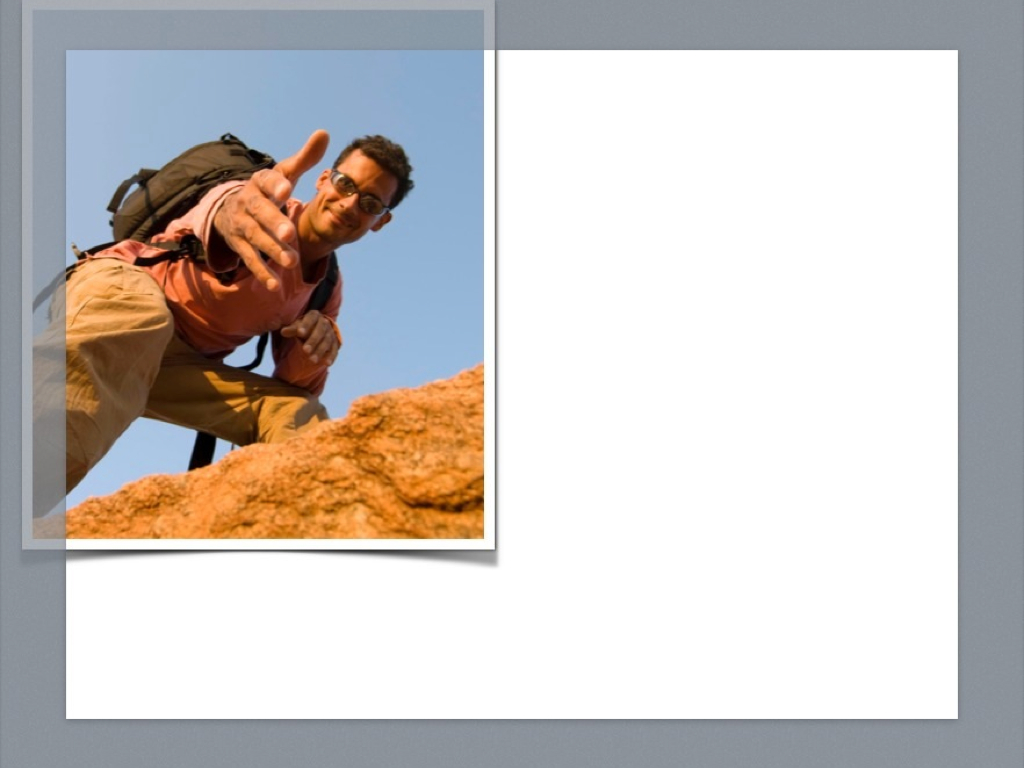
Hide more—Moving the final picture to the top left of the slide and further hiding the edge (top and left) of the picture. This gives an interesting perspective to the overall slide. At the same time, this also created a space on the right side of the slide for additional information.
Slideshow view—Here is the same slide presented in slideshow view with text information added to the right of the picture. Not too bad!

Finally—To put in the final touch, I rotated the picture 5-degrees clockwise, a technique that I discussed in a previous article. How does it look? Interesting?

Give it a try yourself. You will be amazed how interesting your next presentation visuals can be.
Having good and properly designed visual content is important. It gives you confidence in front of your audience and makes you a better presenter.


