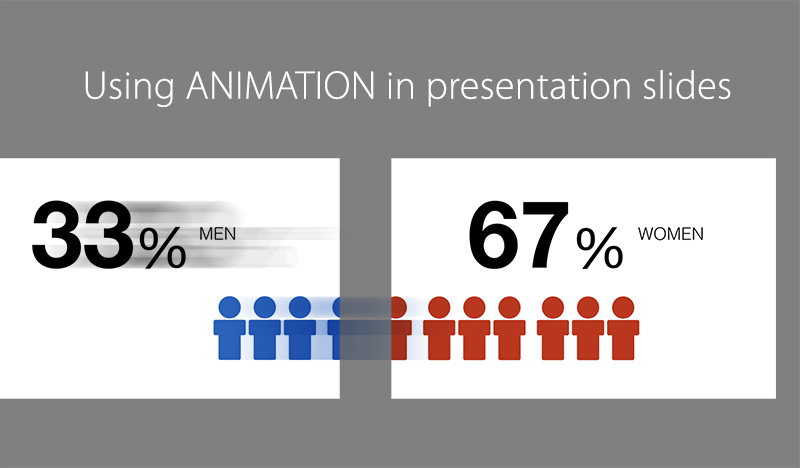
I love watching a play in which one scene moves seamlessly into the next. The background and props appear, disappear or change as the story progresses without making the audience wait while the stage is rearranged. The movement supports the story and keeps the audience engaged.
Presentation slides can work in a similar way. Information can appear when it is needed instead of forcing the audience to process everything at once. But animation does not make confusing information clear by itself. Simplify and organise the information first, then use animation to control when the audience sees each part.
The complex information
Complexity is not only about the amount of data on a slide. It can come from showing too many pieces of information simultaneously, the relationships between different pieces, a sequence that needs to be explained or information that depends on something introduced earlier.
A slide might contain a series of related numbers, a company history compressed into a ten-year timeline or production data shown in a chart. When raw information is copied onto a slide without enough selection or organisation, the audience has to work out both what it means and how the different parts connect.
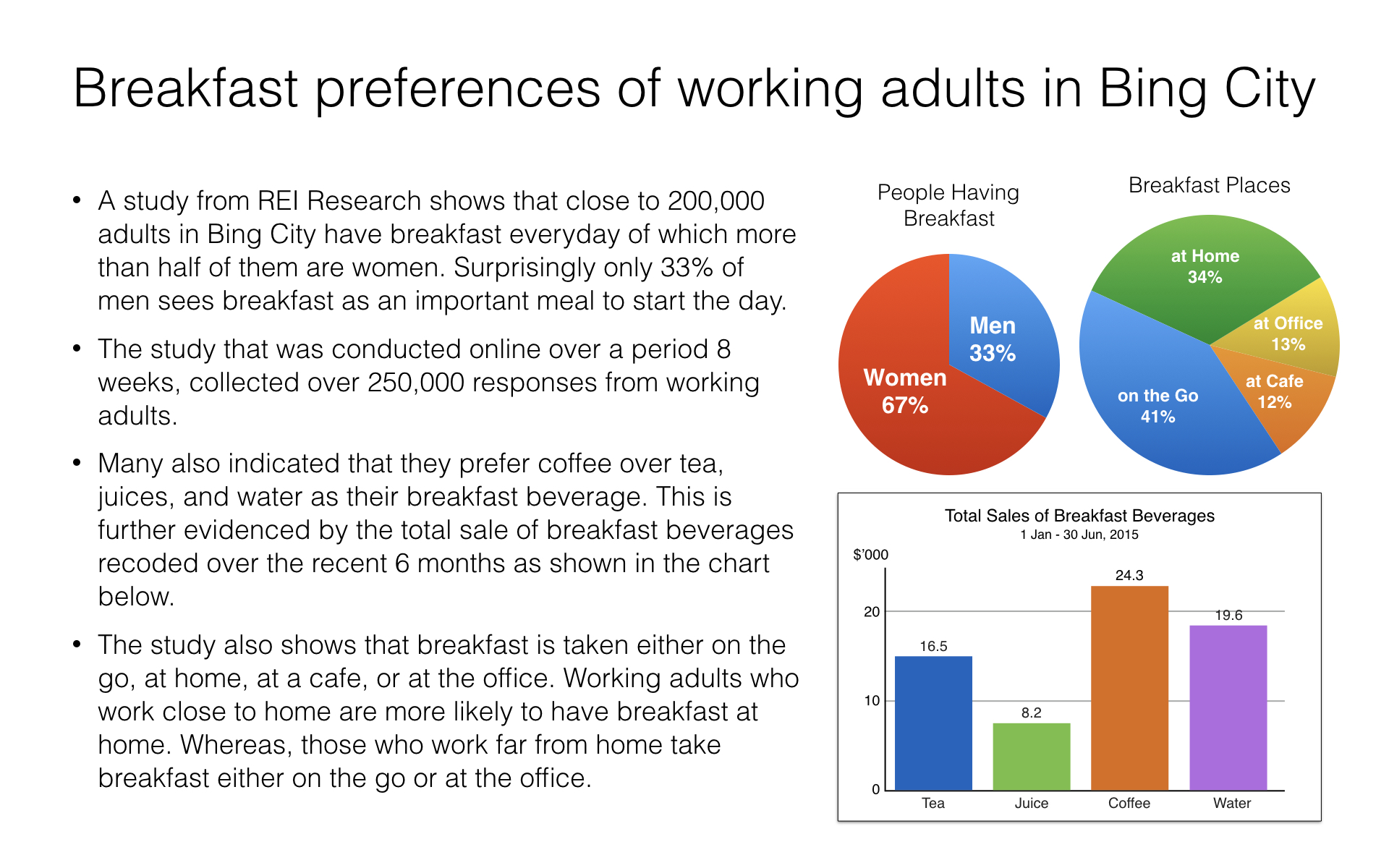
Simplify before you animate
Progressively revealing information can be useful, especially when the audience needs to understand one part before moving to the next. The process, however, starts with the content rather than the animation menu:
- Step 1 — Simplify. Remove unnecessary information and shorten lengthy text.
- Step 2 — Organise. Group related information and establish relationships between the different blocks.
- Step 3 — Sequence. Decide what the audience needs to understand first, second and third.
- Step 4 — Animate. Reveal those layers in the same sequence.
Animation should not be used to rescue an overloaded or poorly organised slide. Begin by reducing paragraphs of text to shorter statements or keywords. Once the information is concise, it becomes easier to arrange it into blocks and show connections using position, lines or arrows.

Design the information flow
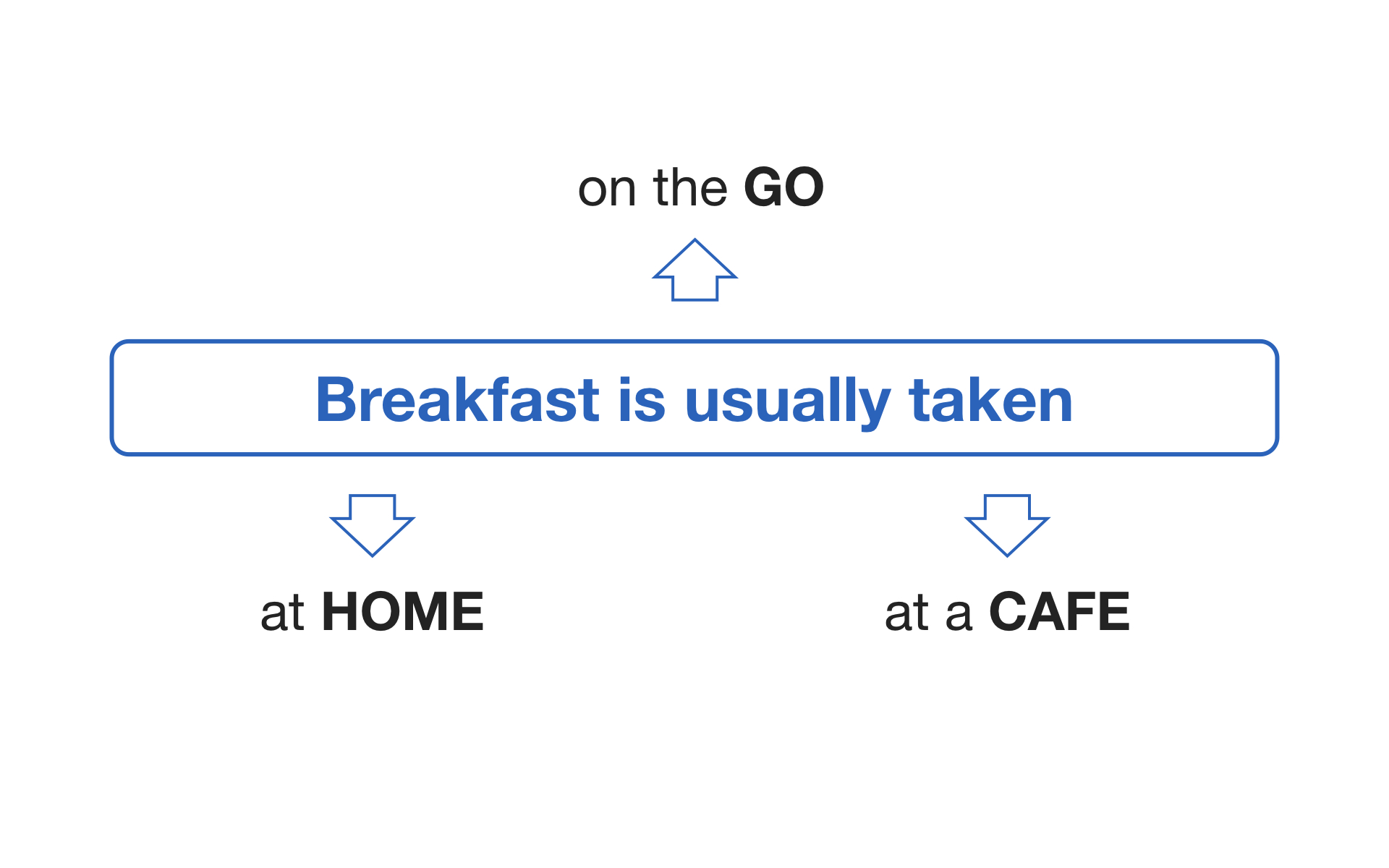
The animation sequence should follow the speaking sequence. As you organise the blocks, consider how each one relates to the others and how much time you need to explain it before the next block appears.
Suppose a slide contains Blocks 1, 2 and 3. If you need time to explain Block 1 and give an example, reveal Block 1 and pause. Bring in Blocks 2 and 3 only when you are ready to discuss them. If several pieces of information will be discussed together, they can appear together. Do not reveal information significantly before you are ready to talk about it, or the audience may start reading ahead instead of following your current explanation. The example in Fig. 4 shows this progression: Block 1 appears first, followed by Block 2, before the complete information is finally shown.

Select animation effects that support the message
The audience should notice the information changing, not the animation effect itself. Simple effects such as fades and restrained movement often work well because they support the information without attracting unnecessary attention to themselves.
More dramatic animation is not automatically wrong, but it should have a communication purpose rather than being used simply because the software makes it available. The same principle applies to transitions between slides. A restrained fade, push or no transition at all is often enough unless another effect helps communicate the change.
Animation isn't always the answer
Choose the format according to what the audience needs to understand:
- Use one static slide when the audience needs to see or compare everything simultaneously.
- Use several slides when individual stages or ideas deserve separate explanation.
- Use animation when the audience benefits from seeing information progressively build into a complete idea.
If three products need to be compared, hiding two until later may make comparison more difficult. If three components progressively combine to create a process, revealing them in sequence may help the audience understand how the complete idea is formed.
Put everything together and rehearse
Animation creates a relationship between what you say, what appears and when it appears. Once the content, sequence and effects have been built in PowerPoint or Keynote, rehearse the presentation with the animations running.
Practise when to advance, where to pause and what the audience will see at each moment. Check whether the animation is running ahead of or behind your spoken explanation, and adjust the timing or sequence where necessary. The objective is a seamless presentation in which the animation supports you rather than becoming something you have to fight with.
The following video demonstrates information that has first been simplified and organised, then revealed in a deliberate sequence.
Simplify, organise, sequence, animate
Animation is useful when it controls the flow of information and supports audience understanding. Simplify the content, organise the relationships, decide on the sequence and only then animate what the audience needs to see.


